
Clinics · full guide · 6 min
How do you manage the calendar of several vets in one clinic?
Short answer : Give each vet their own calendar, with their hours and consultation lengths, then view them side by side by day, week or month. Slots are generated automatically, which limits overlaps.
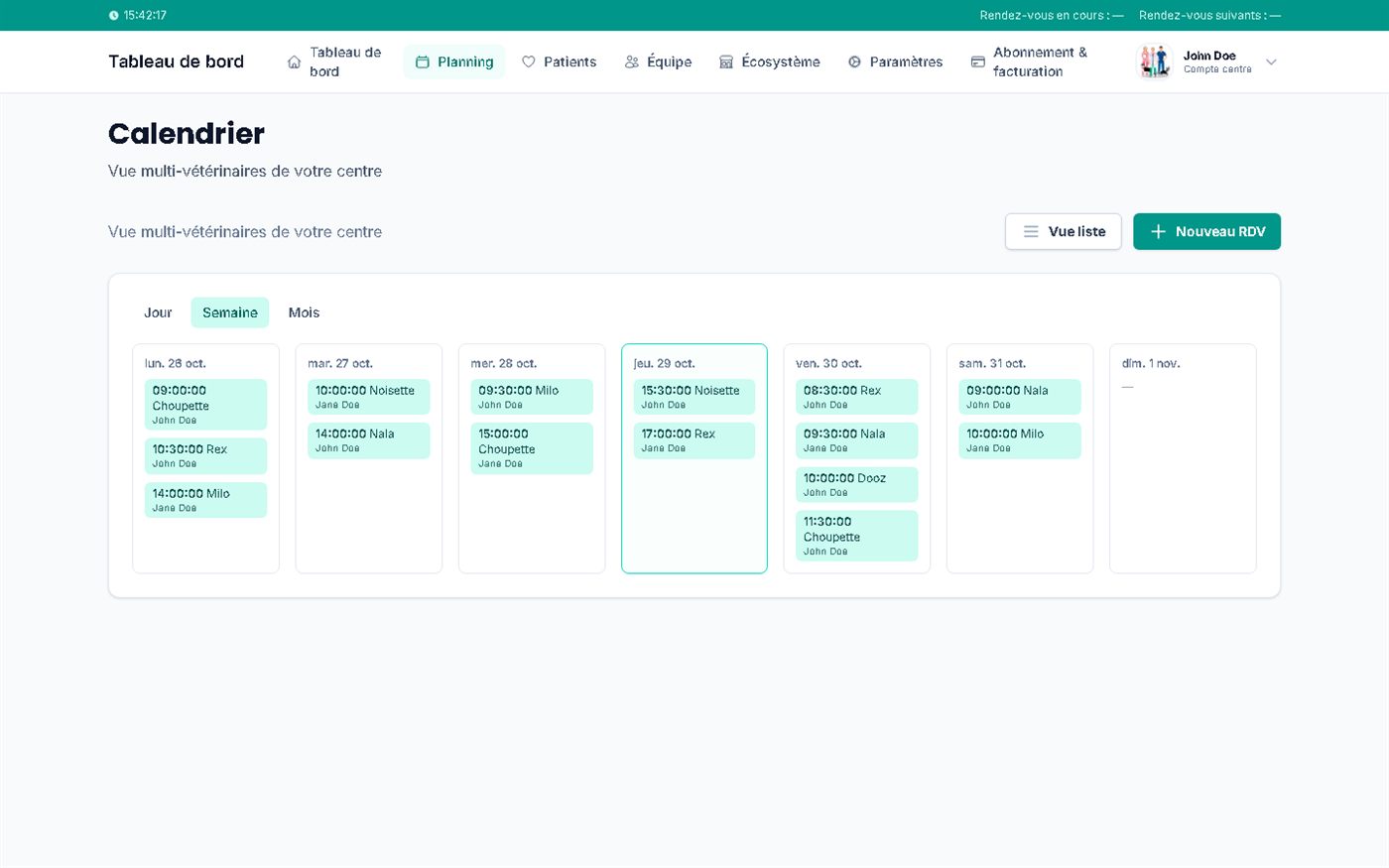
In a clinic, the calendar is not the sum of a few separate calendars: it is a shared schedule where each vet keeps their own hours and durations, and where reception sees everything. Here is how Vetzy organises this for a centre: the shared schedule, the team and its roles, and each practitioner's booking rules.
And in Vetzy?
Day, week and month calendar, regular and exceptional availability, unavailability, and slots generated automatically from the hours and duration of each type of consultation. A Centres plan designed for several vets.
One calendar per practitioner
Each person sets their regular availability, exceptions and unavailability. The centre's schedule reflects each person's reality.
Durations by type of consultation
A vaccination does not take as long as a full check-up. Vetzy applies the planned duration for each type to calculate the slots offered.
Day, week and month views
The calendar can be read at the level that suits you: the morning view to organise the day, the month view to anticipate absences.
Organise the calendar of a team of vets
Screenshots of the app with the demo centre "John & Jane Doe SPRL".
-
Step 1 · Centre
Build the centre's team
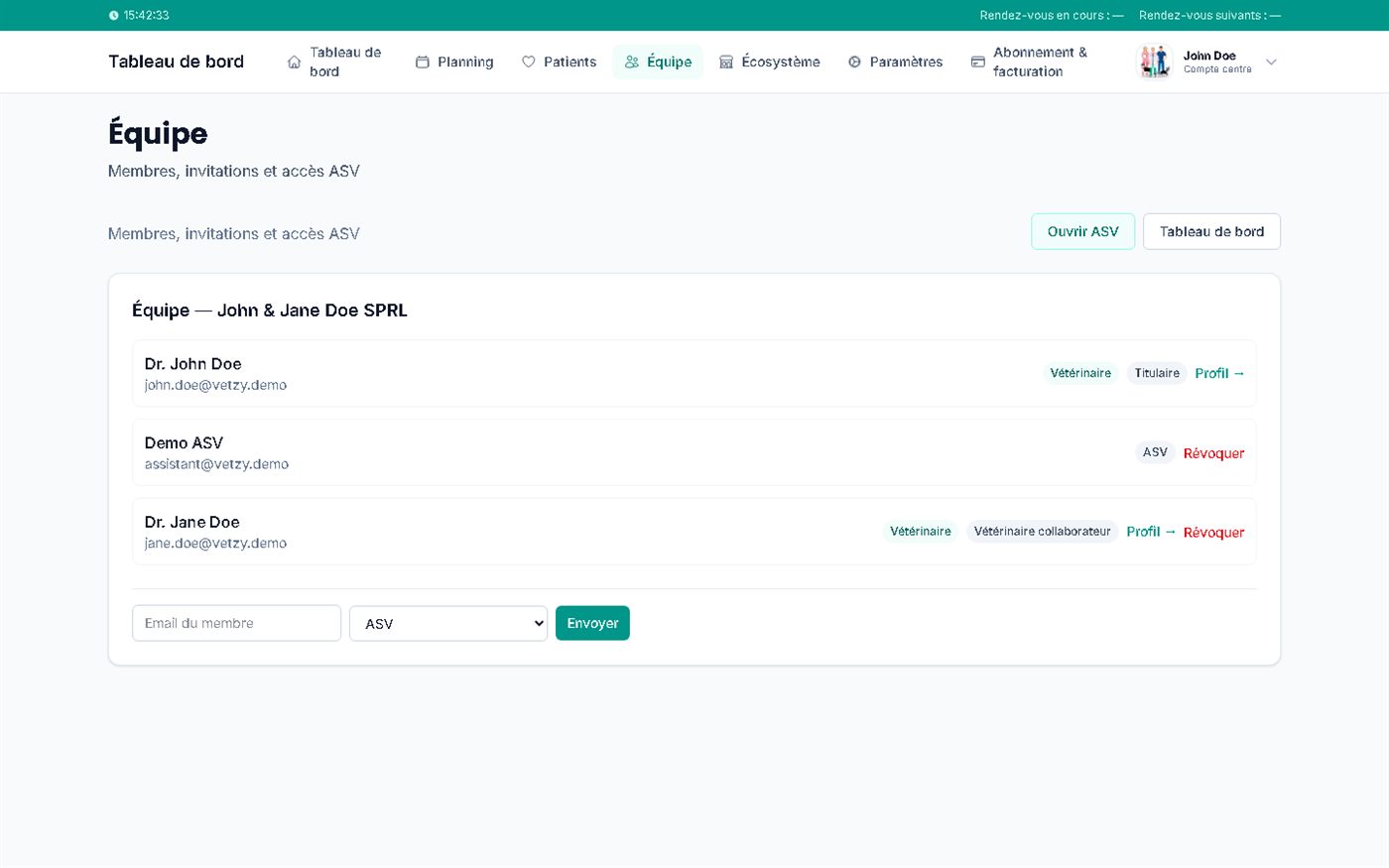
AvailableThe Team area lists the centre's members with their role: lead vet, associate vet, ASV (veterinary assistant). You invite a member by email address, choosing their role, and you can revoke access.
Markers on the screenshot
- 1Each member with their email address
- 2Role: vet, lead, associate, ASV
- 3Revoke access
- 4Invite a member by email, choosing their role
- 5Access to the ASV area
Screenshots of the app (demo data)
-
Step 2 · Vet
Give each vet their own settings
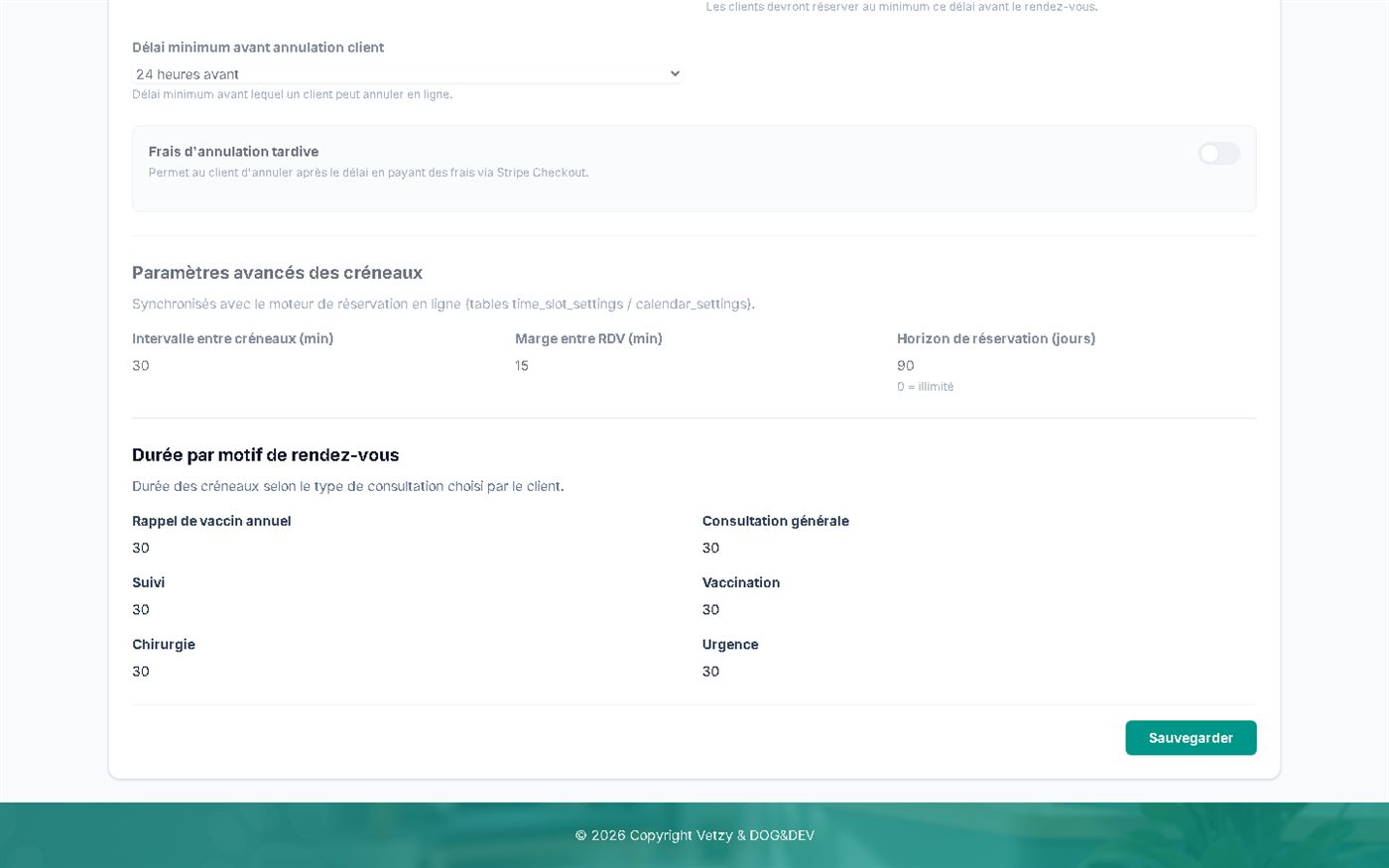
AvailableEach practitioner configures their availability, consultation length, breaks and absences. Some values are inherited from the centre and shown as read-only, which guarantees shared rules.
Markers on the screenshot
- 1Interval between slots
- 2Gap between appointments
- 3Duration by type of consultation
Screenshots of the app (demo data)
-
Step 3 · Centre
See all the vets in a single schedule
AvailableThe centre's calendar shows, in day, week or month view, the appointments of all the vets. Each appointment shows the practitioner concerned. The list view and the "New appointment" button complete the tool.
Markers on the screenshot
- 1Day, week or month view
- 2The vet concerned is shown on each appointment
- 3New appointment
- 4List view
Screenshots of the app (demo data)
-
Step 4 · Owner
Let clients book with the right practitioner
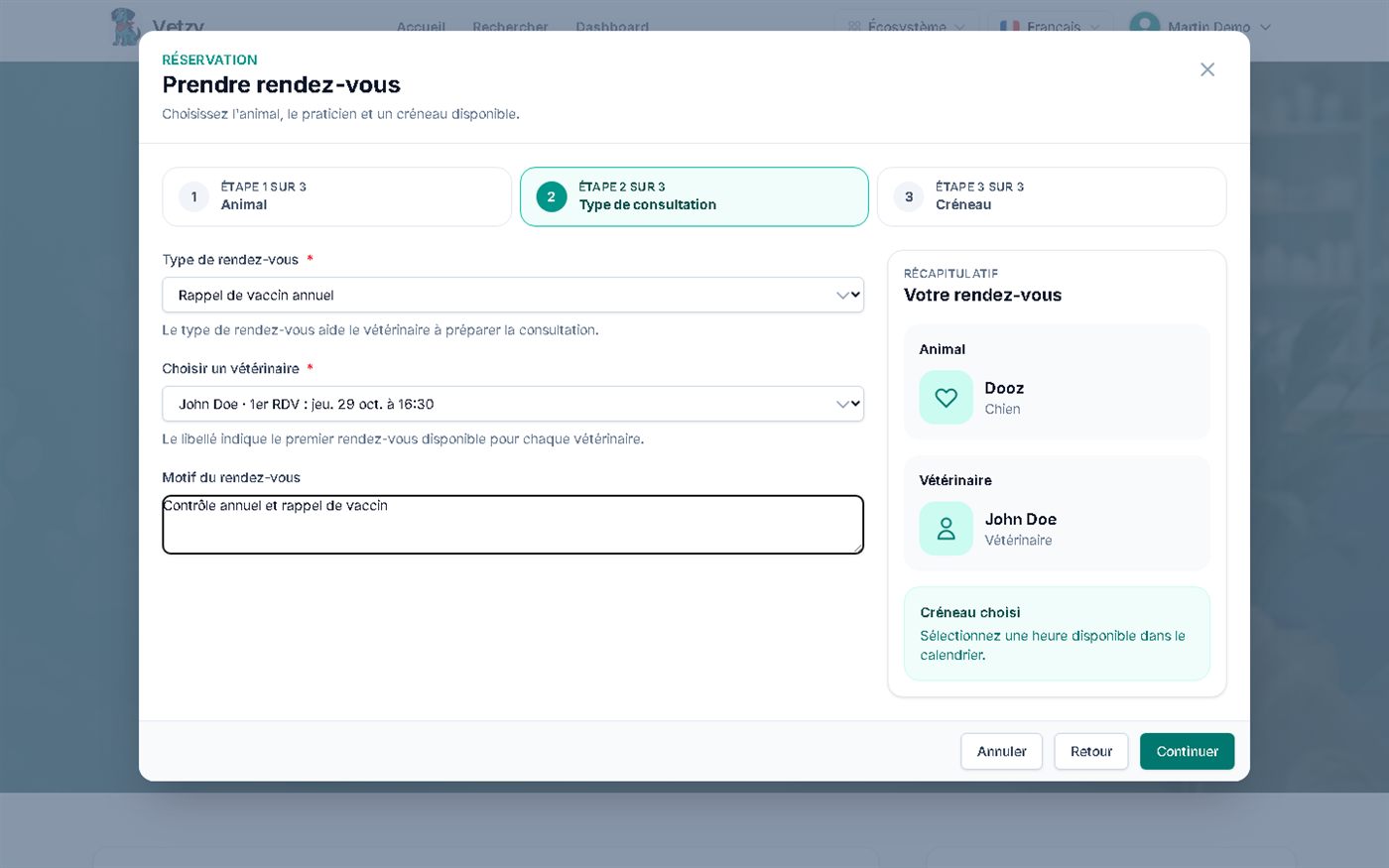
AvailableOnline, the client chooses the centre's vet, with the first available appointment for each. They can also let the available window guide their choice.
Markers on the screenshot
- 1Choice of vet, with their first available appointment
- 2Type of consultation, which determines the duration
- 3Appointment summary
Screenshots of the app (demo data)
-
Step 5 · Centre
Manage the centre's subscription and users
AvailableThe Subscription and billing page shows the Centres plan and the linked users, and lets you add an account by email. The plan includes 3 users, then €9.99 per month for each additional vet.
To be confirmed before publication: the number of included users is stated as "3" in the interface, "10" in a configuration comment.
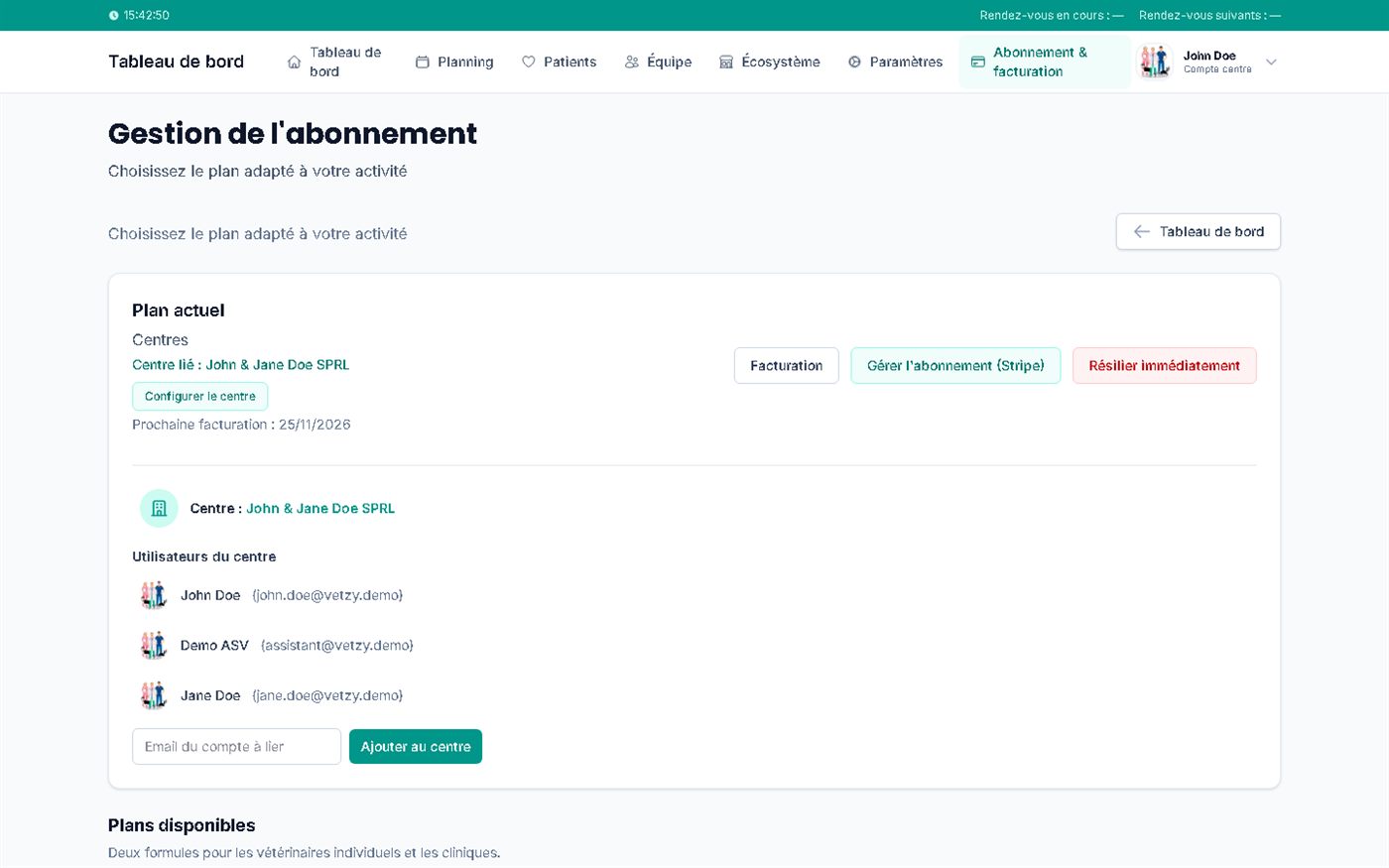
Markers on the screenshot
- 1The centre's users
- 2Add an account by email
- 3Subscription management via Stripe
Screenshots of the app (demo data)
Dashboard
The shared schedule, designed for reception
Reception sees at a glance who is seeing patients and at what time, without switching from one calendar to another. The week view shows each of the centre's vets' days.
- Slots are generated according to each practitioner's hours and durations.
- An appointment can be created from the schedule for a phone call or a walk-in.
- Roles (lead, associate, ASV) define who does what.
Markers on the screenshot
- 1Day, week or month
- 2The current day is highlighted
- 3Each line states the vet
Screenshots of the app (demo data)
One calendar per vet, or a centre schedule
| Today | With Vetzy | |
|---|---|---|
| Overview | Open several calendars one after another. | A multi-vet schedule, by day, week or month. |
| Shared rules | Each practitioner does things their own way. | Values inherited from the centre, adjustable per practitioner. |
| A new vet arrives | Reconfigure tools by hand. | Invitation by email with a role, access to the calendar. |
| Booking by the client | They have to phone to find out who is free. | Choice of vet with their first available appointment. |
Automatic distribution of appointments between practitioners is not announced.
Three vets, one schedule
In Sophie's clinic, three vets work neither the same days nor the same appointment lengths. Reception opens the week view and sees at a glance who is available and when.
- 1Enter each vet's hours
- 2Set the duration for each type of consultation
- 3View the team's week
Transparency
What exists today
-
Available
Multi-vet schedule
Day, week, month, list; appointment creation from the schedule.
-
Available
Team and roles
Invitation by email, lead, associate and ASV roles, revoking access.
-
Partial
Fine-grained access rights
Roles exist; fine control by function is not announced.
-
Partial
Centre statistics
No centre statistics page was found in the version tested.
Frequently asked questions
Can patients book online with a specific vet?
Online booking works on the slots opened by the team. Owners book at any hour, without phoning the clinic.
What happens when a vet is absent?
Their unavailability (leave, training, long surgery) blocks their slots: no booking lands during their absence.
Do I have to enter appointments one by one?
No, slots are generated from the hours and durations you set up once, then adjusted as needed.
How many vets can I attach?
The Centres plan includes 3 users, then €9.99 per month for each additional vet. The exact number of included users is to be confirmed before publication.
Can my vets keep their own hours?
Yes: each practitioner configures their availability, breaks and absences, within the values inherited from the centre.
Related questions
Answers that complete this one, from your point of view and from the other side of the appointment.